
WattPal Guide
How to Register and Download Smart Meter Texas Usage CSV
Use the Smart Meter Texas dashboard to download usage, then upload the CSV to WattPal. The 15-minute export lets WattPal compare time-of-use rules with your actual usage pattern.
Published Aug 31, 2026 · By WattPal Editorial Team (methodology and editorial notes)
Short answer
Sign in at Smart Meter Texas, open your usage dashboard, choose an energy-data report, select a date range, submit the update, and use Export My Report. Keep the downloaded file as a CSV and upload it to WattPal.
Register or sign in
Open the official Smart Meter Texas landing page. If you are new, choose Sign Up and follow the prompts shown by Smart Meter Texas. Tip: Have a recent electric bill handy before registering—you will typically need your 17- or 22-digit ESIID and your Meter Number. If you already have access, sign in and select the meter you want to analyze. Smart Meter Texas controls registration, sign-in, meter visibility, and the report options shown to you; WattPal does not add requirements or change that process. For the provider's written instructions, see the official Smart Meter Texas Residential User Guide (PDF).
For general Texas consumer information, see the Public Utility Commission of Texas consumer resources.
Dashboard export steps
Smart Meter Texas updates its user interface periodically. If the button names or menu locations on your screen differ slightly from the steps below, look for the section labeled "Usage" or "Interval Data".
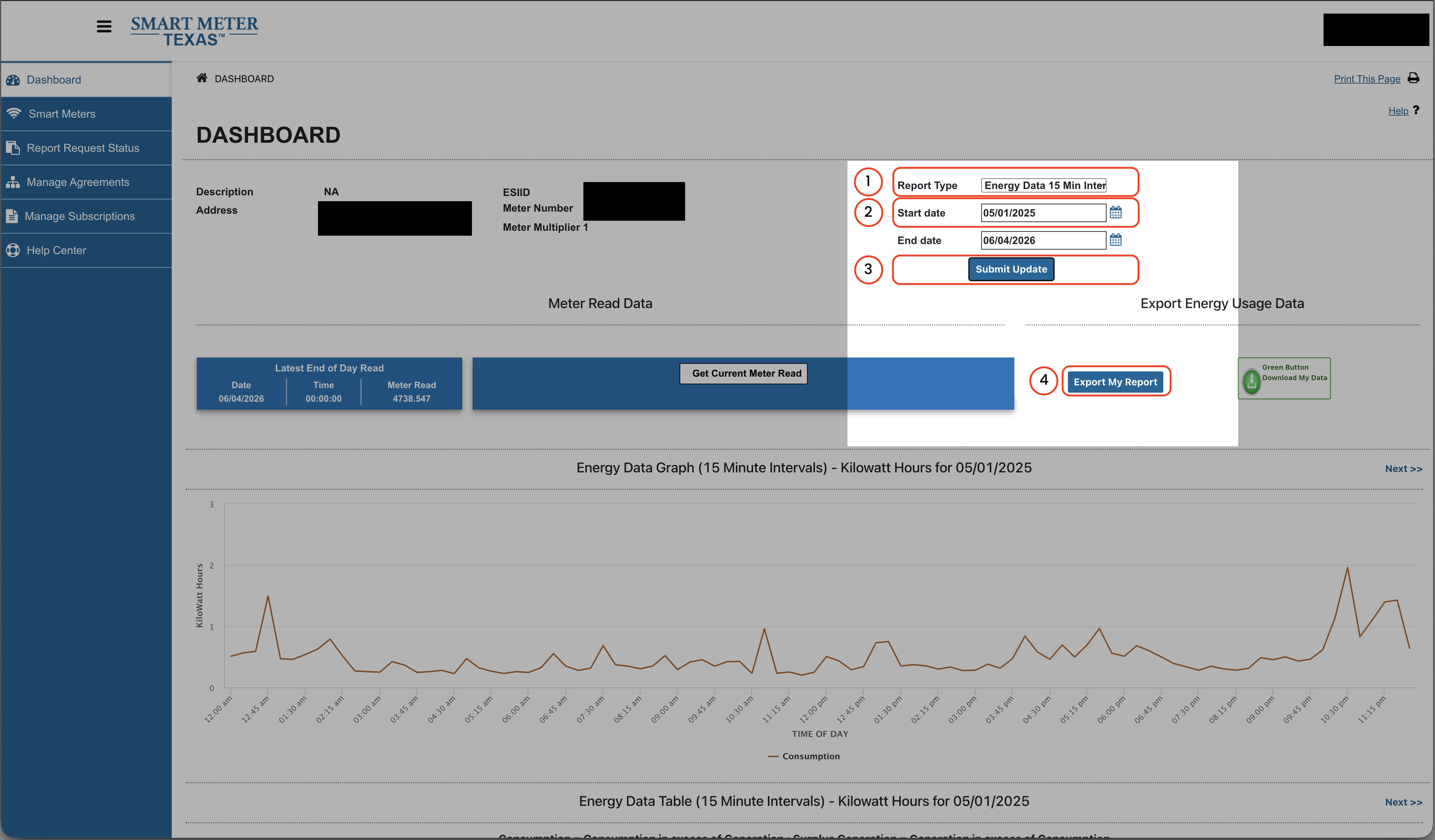
- 1. Open usage data. After signing in, go to the usage or data-reporting area available for your meter.
- 2. Choose the report. Select Energy Data 15 Min Interval when that option is available. This gives WattPal the detail needed to evaluate time-of-use windows.
- 3. Choose dates. Smart Meter Texas typically restricts exports to a maximum of 12 or 13 consecutive months per export. WattPal requires at least 3 months of usage, but a full 12 months is ideal to capture summer air conditioning and winter heating patterns.
- 4. Submit the update. Select Submit Update and wait for the report to finish loading.
- 5. Export. Select Export My Report and save the downloaded CSV. Keep the file as downloaded without opening and re-saving it in a spreadsheet first (programs like Microsoft Excel can automatically reformat dates and drop leading zeros from ESIIDs, which breaks CSV validation).
What CSV formats does WattPal accept?
The upload validator accepts text CSV exports with one of these header sets. Column order and additional columns may vary.
| Export | Required headers | What to expect |
|---|---|---|
| Interval, daily, or monthly | ESIID, USAGE_DATE, USAGE_KWH | Interval data includes start-time detail; daily/monthly summaries have less detail. |
| Billing period | ESIID, Start date, Actual kWh | A billing-period summary, not 15-minute usage. |
WattPal validates CSV only. An XML file is not an accepted upload format, even if it contains similar-looking data.
Common problems
- The export downloads as a spreadsheet
- Keep the original downloaded
.csvfile. Spreadsheet programs (like Microsoft Excel) often automatically reformat timestamp syntax or drop leading zeros from ESIIDs when re-saved, which breaks CSV validation. If this happened, re-download the file directly from Smart Meter Texas and do not rename an XML or PDF to end in.csv. - WattPal says the headers are unrecognized
- Re-download the report from Smart Meter Texas and check that the file is a text CSV containing the required headers above. Do not paste a screenshot or a PDF.
- Only a summary report is available
- A daily, monthly, or billing-period CSV can still summarize usage. It does not contain interval timing, so time-of-use results will use estimates rather than measured interval placement.
Editorial methodology
WattPal Editorial Team wrote this guide from WattPal's CSV validation workflow, the public Smart Meter Texas landing page and Residential User Guide linked above, and the redacted dashboard reference shown here. Labels may change as Smart Meter Texas updates its interface.
Privacy and limitations
Your export can contain an ESIID and usage history. Upload only a file you are authorized to share. WattPal accepts uploads up to 10 MB and processes the file to produce your analysis; see the Privacy Policy for retention details. This guide does not access your Smart Meter Texas account.
A CSV may be partial, missing intervals, or represent a summary period. WattPal cannot recover data that Smart Meter Texas does not provide, and a plan comparison is an estimate based on the uploaded period and available plan terms—not a utility bill or a guarantee of savings.
Have your CSV?
Upload it for a private, usage-based plan comparison.
Analyze my usage →Get my Smart Meter data →For plan terminology, read How to read an Electricity Facts Label, or return to all WattPal guides.